How to Build a Research Log That Survives Hint Addiction
Build a genealogy research log that records searches, ignored hints, empty results, and next steps, with clear links to citations and your family tree.

Created with Grok
You sit down to find one marriage record. The ancestor has a shaky leaf on Ancestry, so you open it. Forty minutes later the tree has three new people, you have ignored a hint for a reason you can no longer remember, and you are looking at a census page you already read last month. You never wrote down the question you started with.
The major platforms suggest possible matches for you to review. Their matching systems differ. MyHeritage says its Record Matching runs periodically as your tree grows and as the company adds records, and invites you to "sit back, relax" while it delivers possible discoveries (MyHeritage Record Matching).
The queue shows you what the platform found. Your own searches, your empty results, and your reasons for saying no to a hint live wherever you wrote them down. Keep those searches and decisions in the log. Hint addiction is what happens when the queue sets the agenda and nobody keeps the notes. A research log is the fix: a dated list of where you looked, what you wanted, what you found or did not find, and what you plan to do next.
What the hint queue is on each platform
Ancestry shows a shaky leaf when it thinks a record, photo, or another tree matches someone in yours. Ancestry asks you to check spouses, siblings, dates, and places, then save the hint to your tree or ignore it (Ancestry Hints overview).
MyHeritage splits its matches in two. Smart Matches compare people in your tree to people in other members' trees. Record Matches compare your tree to historical records. Both arrive in the Discoveries tab (Smart Matching help, Record Matching help).
Findmypast marks hints with small orange icons. It offers record hints and tree-to-tree hints from other members (Findmypast hints help).
FamilySearch calls them Record Hints. These are historical records that Family Tree finds on its own, and it keeps looking as FamilySearch adds new records. FamilySearch tells you to confirm the person is the same, copy over the information you want, and attach the record as a source (FamilySearch Help, Art. 1721).
A hint is a lead. It becomes evidence only after you check it. Family Tree Magazine, Lineages, and MyHeritage's education page agree on that. Family Tree Magazine's rules for hints say to open the image, accept facts one field at a time, trust historical records over member trees, and keep running your own searches (Family Tree Magazine). Lineages, a professional research firm, draws the same line between record hints and tree hints and warns you to check what a hint would overwrite (Lineages). MyHeritage's Smart Matching guidance warns that a match can be wrong through coincidence or user error, and asks you to verify before you confirm (MyHeritage education).
You open a hint, it leads to another hint, and an hour later you cannot say which searches you ran or which ones came up empty. Next month you run them again. AncestrySeeking's post on chasing green leaves describes the same habit and suggests notes and tags inside the tree (AncestrySeeking). Those notes can help explain a fact in the tree. Use the research log to record searches that found nothing as well.
What a research log has to hold
FamilySearch's Research Logs handout recommends documenting your work as you go, including searches that find nothing. It uses nil for an empty result. Finish the entry before you start the next search. The New York Genealogical and Biographical Society asks whether someone else could retrace your work from the log (NYG&B).
These ten columns pass that test.
| Field | What it does |
|---|---|
| Date of search | Online collections change. A search that found nothing in one year can find something later (NYG&B). |
| Ancestor or person | Keeps the session on one person. |
| Research question or goal | Gives you a reason to say no to a hint. |
| Where searched | Site, collection, place, and date range. |
| Search terms and filters | Tells a hint apart from a search you ran yourself (Find My Ancestors). |
| Result | Found, NOT FOUND or NIL, or ignored hint. |
| Source or citation note | Enough detail to find the item again and write a full citation later. |
| Conclusion or confidence | Why you accepted it, parked it, or rejected it. |
| Next step | What you will do next. |
| Hint ID, URL, or ignored? | Optional. Platforms reshuffle their suggestions, and this column lets you find a hint again anyway. |
Puerto Rican Genealogy's Module 4 has a clean beginner column set and sample NOT FOUND rows, each pointing to the next place to look (Module 4). FamilySearch's handout includes the purpose of each search, the source description, and the results, including empty searches (Research Logs handout).
Start with those fields. Add colors or status tags if they help you find and review entries.
Two terms get mixed up here. A negative result is a search that found nothing, written down so you do not run it again. Negative evidence comes from interpreting an absence against the other records and the question you are trying to answer. Family Locket explains the difference in detail (Family Locket). Your log records results. Whether those results add up to evidence comes later, after analysis.
The Board for Certification of Genealogists lists five parts to the Genealogical Proof Standard. A research log does the most work on the first three: reasonably exhaustive research, complete and accurate citations, and thorough analysis (BCG Ethics and Standards, BCG GPS skillbuilding). Link to the standard if you want to share it. Copying BCG's copyrighted material into your spreadsheet is a bad idea.
A sixty-second check before any hint
Open the log before you open the hint. Write today's research question, the person, and the collection or place you planned to search before the leaf showed up. Data Mining DNA's series on Ancestry hints recommends reviewing hints from the person's profile page, where spouses, siblings, dates, and places stay in view (Data Mining DNA, evaluating hints, Data Mining DNA, how hints work).
Then ask whether the hint helps answer today's question. If it does, open it with the profile still on screen. If it does not, add a row marked "Later" with the person, the platform, and one line on why you parked it. Then go back to your plan.
You open the hint "just to look," and only then do you come up with the question it supposedly answers. By then you are following the hint instead of the question you wrote down.
Reviewing a hint without losing the trail
Read the image if there is one. Indexers make mistakes, and Family Tree Magazine and Lineages both treat the original scan as the real check (Family Tree Magazine, Lineages). Accept facts one field at a time when the site allows it. Accepting everything at once can replace a better date you already had.
A historical record can change a fact in your tree. Another member's tree is a lead you still have to check. MyHeritage's education page makes the same point about Smart Matches and suggests reviewing each section separately instead of extracting all the information in one click (MyHeritage education).
On FamilySearch, use Compare to line up names, dates, relationships, and places. Use Not a match only when the record has no information about that ancestor. FamilySearch also says to attach accurate hints even when they look like duplicates (FamilySearch Help, Art. 1590). FamilySearch's Family Tree is shared, so an attachment there changes what other researchers see. Your own research log stays outside that shared tree.
On Findmypast, facts start selected. Uncheck anything you do not want to add before you accept the hint. You can save uncertain hints for later and revisit saved or rejected hints (Findmypast review help). On Ancestry, a hint you ignore is not supposed to come back (Ancestry Hints overview).
Before you open the next hint, write one line in the log: found, ignored, or parked, and why.
Data Mining DNA also points out that Ancestry hints draw on only some of its collections, and that their accuracy varies (Data Mining DNA, how hints work). If one collection keeps wasting your time, note that too. When the hint count climbs again, you will know which leaves to skip.
Negative searches and ignored hints
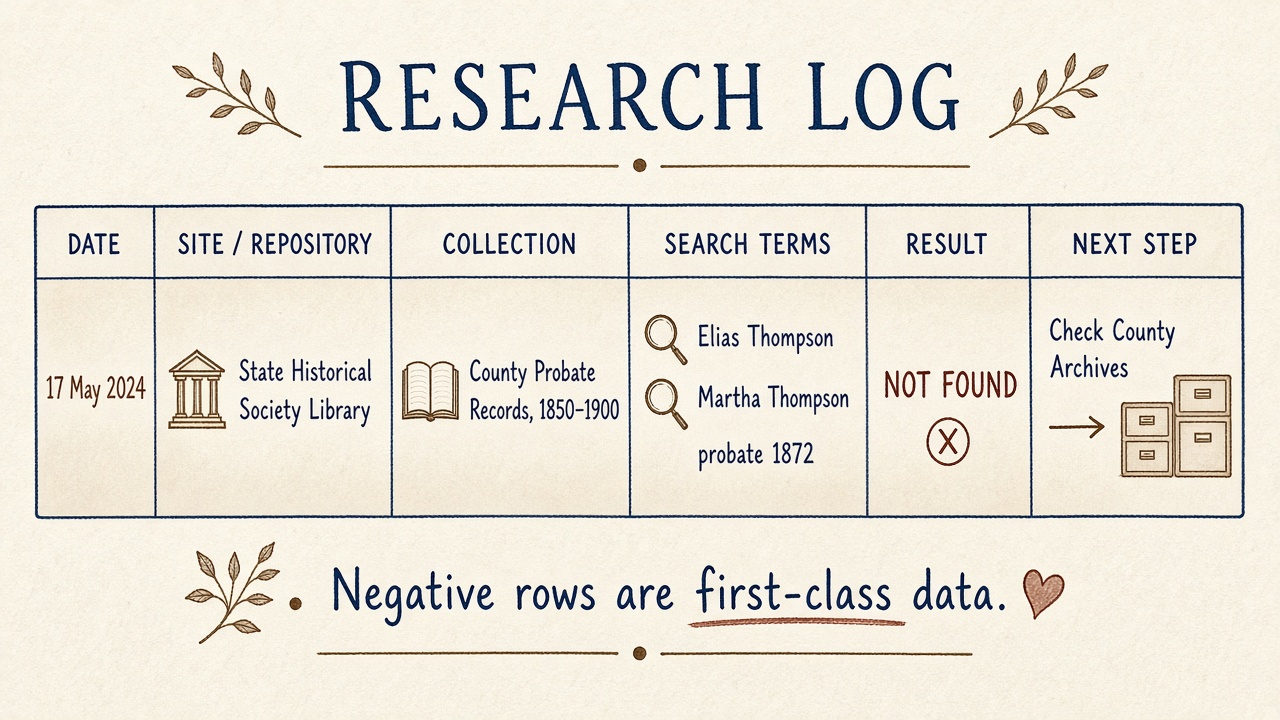
A search that found nothing is still a result, and it goes in the log. FamilySearch's Research Logs handout uses "nil" for an empty search (Research Logs handout). Finish the entry before the next search. Module 4's sample marriage search reads "Not found," and its next step points to church records or a neighboring town (Module 4).
Write enough to run the same search again exactly: site, collection, name spellings, date range, place filters, and what you were looking for. Family Locket recommends creating a citation for an empty search, which matters later if the missing record becomes part of an argument (Family Locket).
Created with Grok
Ignored hints need a reason too. "Wrong county." "Tree match only, no record behind it." "Same person already attached." "Parked until I finish the 1880 census." A bare "no" tells you nothing when you return to that decision.
The date on each row matters because the collections keep growing. NYG&B quotes D. Joshua Taylor on going back to your log when collections update (NYG&B). A NOT FOUND from 2022 may deserve a second try once that collection has grown.
From log row to citation and tree
Every Found row should hold enough to support a solid citation: the document ID or ARK, the file name, the collection title, the date you accessed it, and the page or certificate numbers you actually read. The log holds your rough notes. The citation is the version you keep.
When you turn a Found row into a full citation for a census or vital-record image, use How to Cite Census, Vital Records, and Online Images. That post covers image versus index and the details that let someone find the same item. If you work from Evidence Explained (Evidence Explained), build each citation from what you captured instead of pasting its templates wholesale.
A log and a GEDCOM file do different jobs. The log records how you did the research. GEDCOM moves people, families, and sometimes sources from one program to another. For what survives a .ged export and import, see GEDCOM Import/Export Without Breaking Sources.
In the tree, attach the source you checked. Keep the conclusion short enough that a cousin can see why you trusted the fact. Messier working notes can stay in the log.
Paper, spreadsheet, or software Tasks
Choose one tool and open it before you open the hint queue.
Paper notebook. It still works. NYG&B calls paper versus digital a personal choice and notes that digital is easier to search and sort (NYG&B).
Spreadsheet (Google Sheets or Excel). Freeze the header row, sort by person or date, and color Found and NOT FOUND rows differently. Module 4, Find My Ancestors, Nicole Dyer's RootsTech talk on Google Drive for Family Locket, and Martin Roe's planner all use spreadsheets for this (Module 4, Find My Ancestors, Family Locket, Google Drive, Martin Roe). Martin Roe says plainly that his planner holds a log, an index, and tasks, and that it does not replace tree software. Your people still live in Ancestry, RootsMagic, or whatever program you use.
Desktop software Tasks. RootsMagic lets you set goals and record results on tasks linked to people, families, sources, places, and media. Folders group tasks the way a research log would, and RootsMagic shows a Research Log view when you open a single folder (RootsMagic Tasks page, Working with Tasks). Legacy Family Tree offers blank research-log reports and To-Do lists you can use the same way (Legacy research logs, Legacy To-Do lists).
Free starter templates exist. Thomas MacEntee offers a downloadable log at Abundant Genealogy, Module 4 has a Google Sheets version, and Find My Ancestors has one too (Abundant Genealogy, MacEntee). Link to them and adapt them to your own columns. If a sheet is copyrighted, build your own version instead of copying it wholesale. Cyndi's List keeps an Organizing page if you want more forms to compare (Cyndi's List).
A sample one-hour session
The times below are teaching suggestions. Nobody measured them, so adjust them to fit how you work.
- Pick one research question and one person.
- Write the searches you plan to run (site, collection, terms) before you click anything.
- Give hints about fifteen minutes, for that person only. AncestrySeeking suggests a weekly hint session, and the same idea works for a single profile (AncestrySeeking).
- For each hint you open, check the image or the Compare screen, then log Found, Ignored, or Parked with a reason.
- Run one of the searches you planned in step 2. Log Found or NOT FOUND with the exact filters.
- Write your next three steps. Close the tabs for everyone else.
At the end of the hour the hint count may still be high. The log will show what you searched and what you decided, and next month you can see which searches you already ran.
AI help with log cleanup (optional)
An AI chatbot can turn messy notes into log rows or suggest clearer column names. It has no way of knowing which collections you actually searched, and it can invent a row for a collection you never opened. Paste in only what you did. Check every date, collection title, and result it hands back against your own notes before you keep the row.
No affiliate program sits behind this suggestion. A chatbot is a fast typist that sometimes makes things up, and you should treat it that way.
Help pages and further reading
Platform help pages worth keeping open while you practice:
- Ancestry Hints overview
- MyHeritage Smart Matching and Record Matching
- Findmypast hints and reviewing, accepting, or rejecting hints
- FamilySearch Record Hints and attaching record hints
- FamilySearch Research Logs handout
- FamilySearch Wiki: Record the Results
- FamilySearch Wiki: Describe the Records on a Research Log
- ICAPGen educational resources
- NYG&B: Essential Methods: Research Logs
- BCG Genealogical Proof Standard
- Cyndi's List: Organizing Your Research
On this site:
Ancestry, MyHeritage, Findmypast, FamilySearch, and RootsMagic come up in this post because that is where the hint queues and Tasks screens are. This post has no affiliate links.
MyHeritage will keep delivering matches, and Ancestry will keep shaking leaves. The log shows the searches you ran and the results you recorded.
Always verify sources yourself
This tutorial provides general guidance. Cross-check citations against official style guides and verify all records with primary sources when possible.