GEDCOM Import/Export Without Breaking Sources
Export a tree, import it elsewhere, and the citation panel is blank. Keep sources in the GEDCOM with export checkboxes, new-tree import, and a short survival test.

You export a branch on Tuesday. You import it into a second program. You open the same 1940 residence fact you had cited from a census image. Date and place are still there. The citation panel is blank. Or the title arrives as a truncated string that no longer names the schedule, the ED, or the page. The image thumbnail is gone.
Names and facts and places and dates and relationships? They might all go across programs just fine. Sources, not so much. Ancestry's help says facts, notes, and sources are usually retained when a tree moves through GEDCOM, and that pictures and charts are not included. RootsMagic's export dialog puts sources behind a checkbox. Leave Sources unchecked and the .ged walks out without your citations. FamilySearch is stricter: when you transfer people from an uploaded GEDCOM into Family Tree, sources, notes, and media do not transfer at all.
A fact without a source isn't much of a fact. Keep SOUR data in the export options. Import into a new tree before any merge. Run a short survival test before you delete anything. When a round-trip leaves only fragments, rebuild with the habits in our citation tutorial.
What GEDCOM carries in the file
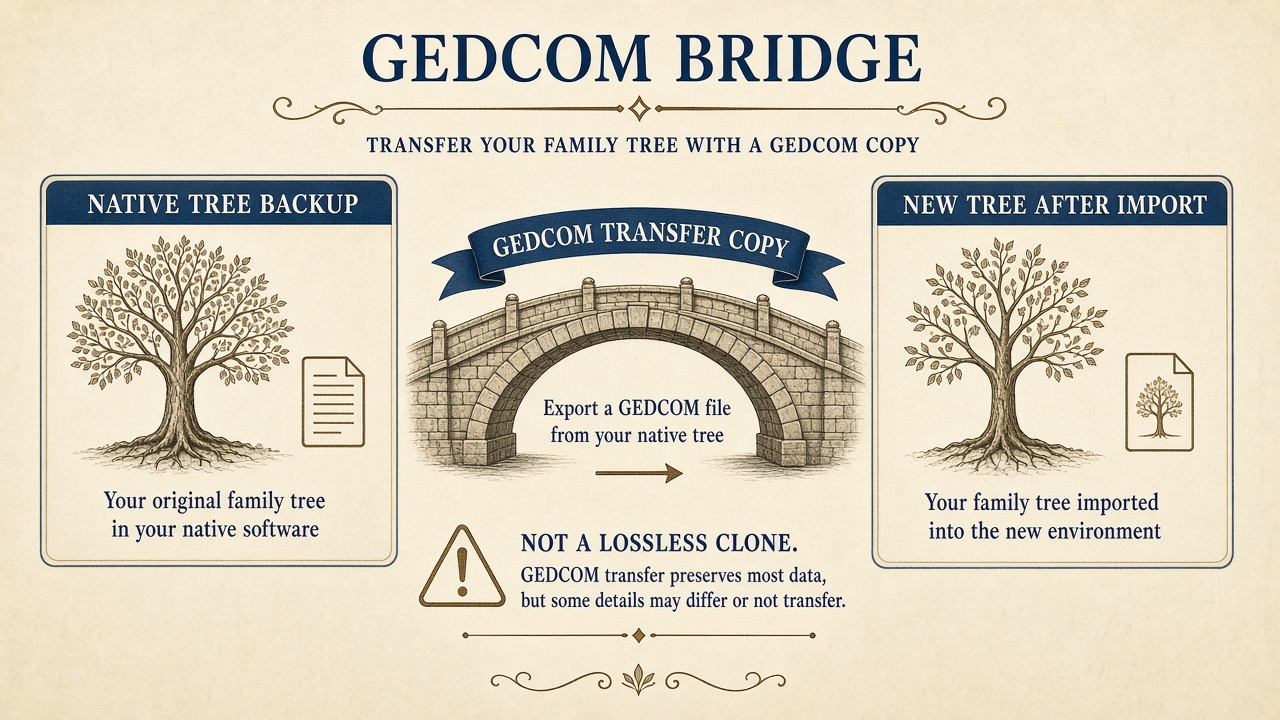
GEDCOM is plain-text interchange for people, families, events, sources, and notes (gedcom.io, FamilySearch GEDCOM 7 overview). Your Ancestry screens, MyHeritage hints, and Findmypast media library do not come along for the ride.
Most programs still create GEDCOM 5.5.1 files and can import GEDCOM 5.5.1. GEDCOM 7.0 was published in 2021. GEDCOM 7.0 files must be UTF-8 encoded, eliminate many ambiguous situations, and can include media via GedZip packaging. In practice, not all programs yet support GEDCOM 7.0. It's best to create a GEDCOM in the format that can be imported by the receiving program. Unfortunately, 7.0 and 5.5.1 aren't always interchangeable: some programs won't import GEDCOM 7.0 files. The FamilySearch GEDCOM 7.0 specification and FamilySearch's GEDCOM 7 blog post both say the same thing.
Encoding is where damage hides until you look closer. Historically, GEDCOM has not always defaulted to UTF-8, often using ANSEL instead. If you import a file encoded in ANSEL as though it's UTF-8, place names with accents, non-Latin characters, or foreign-language source titles can turn into garbled characters. To play it safe, create a dated GEDCOM 5.5.1 file using UTF-8 encoding. If you don't know which program you're importing the file to, a dated GEDCOM 5.5.1 using UTF-8 is probably your safest bet.
In theory, GEDCOMs include sources, and the GEDCOM 7.0 standard, authored by FamilySearch, goes into detail about what should be included. SOURCE records (SOUR) may include an author (AUTH), title (TITL), an abbreviation (ABBR), a publication statement (PUBL), the text of the source (TEXT), and citation detail such as page. Repositories (REPO) may be included. And each fact that cites a source should indicate which source, down to the specific page or entry. Exporters fill those fields differently. KleioBase's GEDCOM explainer is blunt: citations may arrive and still need cleanup.
What usually survives and what breaks
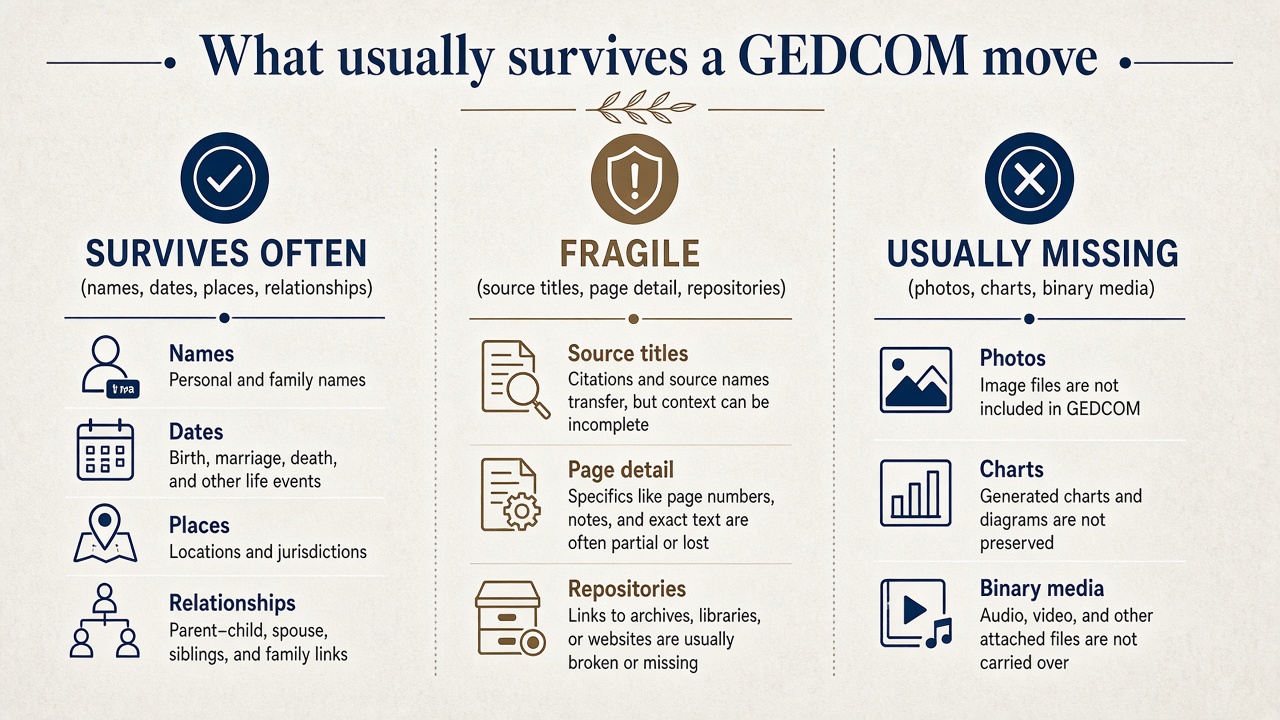
Names, dates, places, and relationships often travel. A birth, death, or residence fact usually shows up. Open the tree once and the move looks fine.
Then you open a citation panel.
In practice, GEDCOM import/export without breaking sources is dicey. Sources may or may not export from one program and import to another. Citation components such as title, author, publisher, and page may export and import incorrectly, or sources may export as text rather than structured information. Ancestry documents GEDCOM as text-only and says facts, notes, and sources are usually retained. Family History Daily repeats that line when it teaches people how to move a tree. Neither page says how those citation fields remapped.
Media files are another challenge:
- Ancestry says facts, notes, and sources usually transfer with the tree. Images, charts, and similar do not transfer and may need to be added or linked again.
- RootsMagic lets you include sources with the checkbox Include Source Records, including citation info.
- FamilySearch omits sources when moving people into Family Tree from a GEDCOM, along with media. Details from sources, media, and custom events won't be publicly viewable on Pedigree Resource File trees either.
- MyHeritage will include sources if you've published your family site. The exported GEDCOM file will contain family information including stories and optionally photos.
- Findmypast's tree-builder FAQ says attached media won't upload because the format does not allow it.
- Family Tree Maker's Include Media option doesn't create an archive of photos, but just includes links.
Even if they survive the trip, media are rarely embedded in GEDCOMs. Instead, GEDCOMs traditionally include a link or a file path to the media. Gramps documents numerous situations with no straightforward mapping in GEDCOM 5.5.1 and acknowledges that GEDCOM export is lossy.
Custom events and proprietary tags break often. RootsMagic's export dialog warns that some information will be ignored by other programs. RootsMagic-specific information is tagged with an underscore character (_) and programs that don't understand this information will ignore it. FamilySearch Family Tree adds a hard drop of its own. You cannot download a GEDCOM from Family Tree through the ordinary product path, because widely used GEDCOM cannot store reason statements and other Tree-unique data. Upload a GEDCOM, then transfer people into Family Tree, and sources, notes, and media stay behind. That drop is how Tree transfer is designed. No export checkbox fixes it.
So you may successfully move your family tree from one program to another using GEDCOM, sort of. Facts are degraded without their sources. Checkboxes in export dialogs may leave out sources and media unless you pay close attention. GEDCOM import/export without breaking sources requires vigilance.
Export options that decide whether sources leave with the file
Native tree or desktop database first. Keep the platform tree. Keep the RootsMagic or Family Tree Maker file. The .ged is a transfer copy, not the vault.
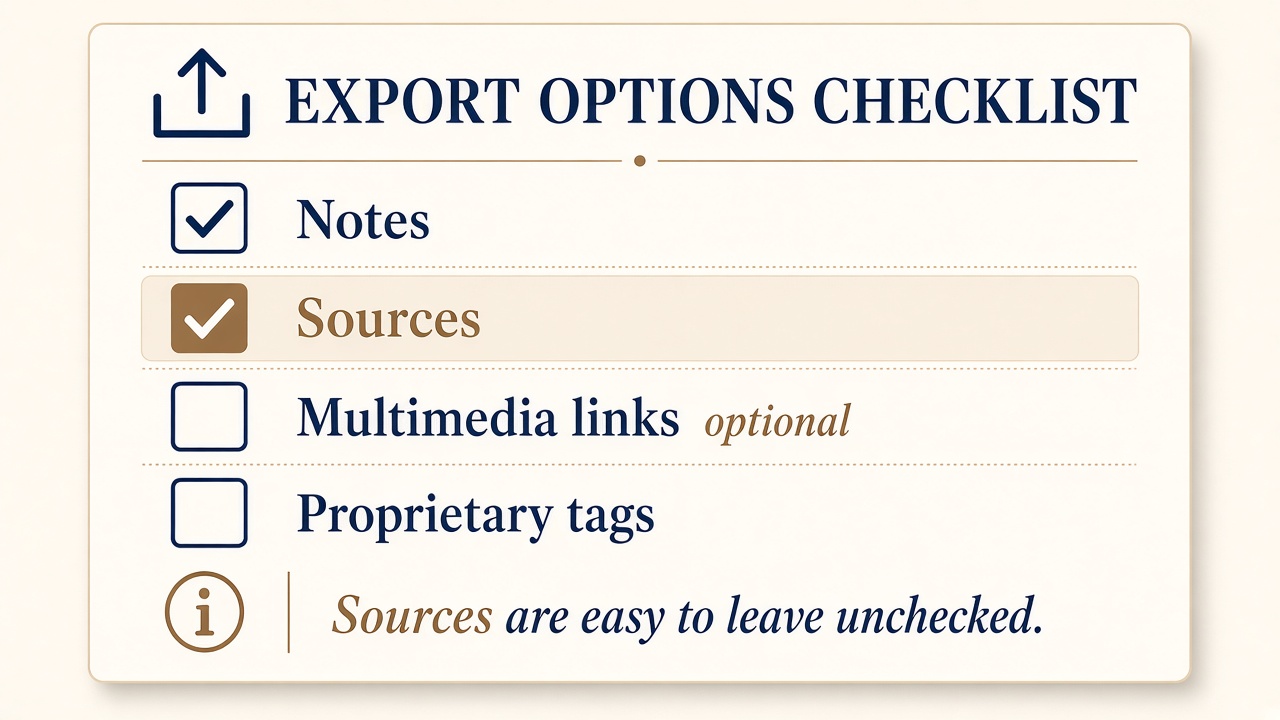
Export with care. RootsMagic's GEDCOM Export dialog gives you choices of what to include or leave out. If you miss that little Sources checkbox, boom, no more sources in the .ged file. Other items to consider are Notes, media file links, custom tags, and privatizing people still living.
Export a GEDCOM 5.5.1 file using UTF-8 if you're unsure which version and encoding your importing program prefers. Only pick version 7.0 if you know the destination can use that version. Save with a dated name. Keep a second dated copy on a backup drive or in a folder you will not overwrite.
Platform click-paths people actually use:
- Ancestry: Go to your Trees, select the tree, pick More, choose Tree Settings, click the Export tree link, pick Export tree data only, follow prompts. Ancestry allows GEDCOMs up to 500 MB (Uploading and Downloading Trees).
- MyHeritage: Manage trees / Export to GEDCOM on a family site. Exporting to a family site allows a choice of including photos. Import is Family tree, then Import GEDCOM (import guide, move between sites).
- Findmypast: View all trees, Export tree, Download (download help). Media still does not travel with that file.
- Desktop (RootsMagic / FTM): Open the product export dialog, tick sources and notes, decide whether multimedia links are enough for this move, and set character encoding on purpose (RootsMagic exporting data, FTM export/import).
Consider alternative means of transfer when you can. RootsMagic can import from some versions of Family Tree Maker directly. Direct imports can include more information than a GEDCOM. Family Tree Maker's export allows a choice of GEDCOM types aimed at a person/program or another destination.
Export a dated .ged with sources checked. Leave the native tree untouched.
New-tree import before merge or delete
Test drive GEDCOMs regularly. Export from one program, import to another. If possible, import into a new tree instead of merging into your current tree. Don't import into your working file, replace your working file with the import, or overwrite anything.
MyHeritage will create a new tree when importing a GEDCOM. RootsMagic can import into a new or existing file. Unfamiliar data may land in a .LST listing file. Read that log. FamilySearch doesn't allow importing to Family Tree through the ordinary product path the way other sites do.
Take screenshots of sources and citations before export. Pick three to five records with complex citations. Include a census with a full source and citation (including page), a vital record with a certificate number and repository, and a note associated with a source such as a deed or a book. Screenshots give you something to hunt for during import.
Do not delete the source tree until the survival tests below pass. Plan media re-attach as a separate job with a known folder structure. Ancestry, Findmypast, and Family History Daily all treat images as something you move or relink outside the GEDCOM itself.
KleioBase warns that identical GEDCOM source lines can end up very differently in other programs: as a master source, as a free-form note, or as a source and citation. Keep the original .ged. Expect friction on complex citations and non-Latin characters.
Open the new tree long enough to run the tests. Keep both trees until those pass. Only after confirming sources made the trip should you nix the current tree and rename the imported tree to replace it.
Source survival tests before you delete anything
Before export, pick three to five people with rich citations. A census image with page detail. A vital-record image with a certificate number. One off-site deed or book note. Screenshot the citation panels. After import, open the same people and run the same checks.
- Is a source title (and author or publisher when you had them) still attached to the fact, not floating only on the person?
- Is the PAGE / "where in source" detail still present?
- Is the repository still linked when you had one?
- Did citation notes survive?
- Did non-Latin characters in titles or places survive, or did they turn into garbled characters?
Any fail means keep both trees. Open the .ged in a text editor and search for common GEDCOM tags SOUR, PAGE, and REPO. No results in the GEDCOM means they weren't in the export. Some results and nothing showing up in the importing program means the import may have tossed or interpreted them differently.
Partial fields left? Rebuild the citation on purpose. Our citation tutorial walks census and vital-record images through layered notes so the trail stays followable after a messy round-trip.
Test 1 or 2 fails on your sample people? Stop deleting. Open the .ged.
Common breakages and the mechanism behind each
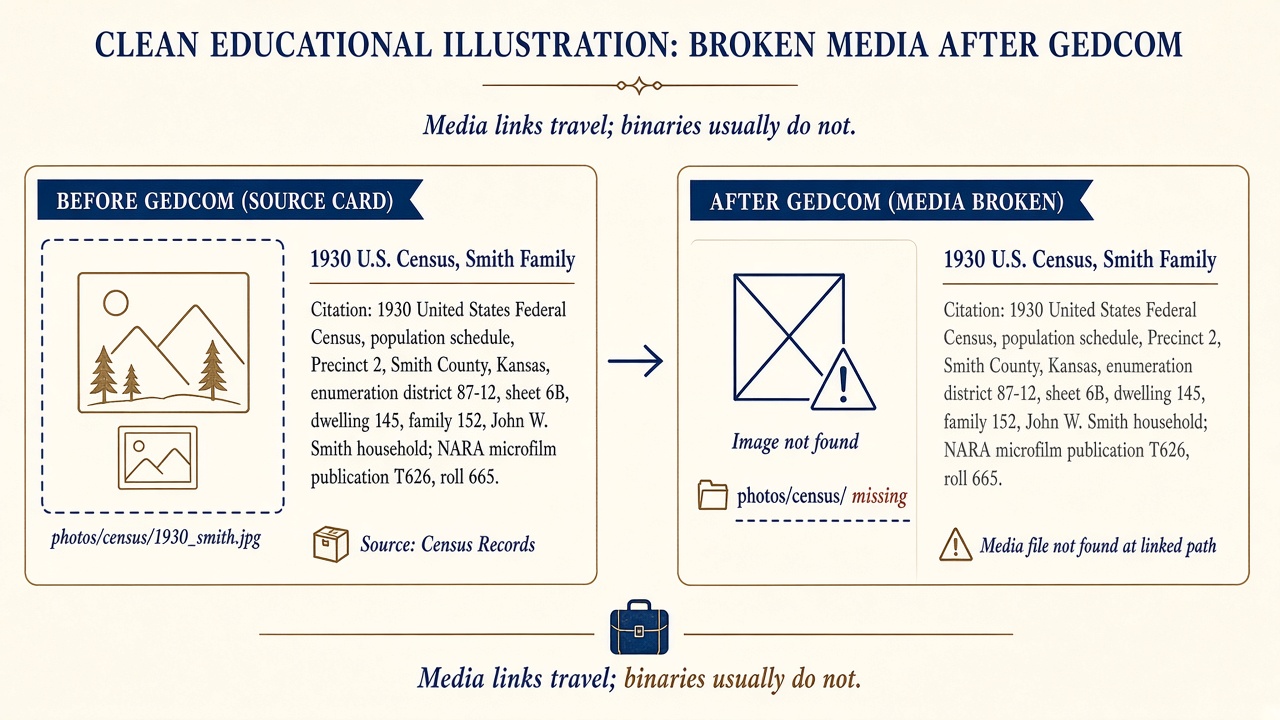
Media path broken, images absent. The GEDCOM file may include links to media instead of the media themselves. If the program or website you're importing into doesn't have the media, it may show a link but not the photo. Some programs and websites don't include media in GEDCOMs at all. Ancestry includes media in its own family trees, but excludes them in text-only GEDCOM files. RootsMagic offers a choice during the GEDCOM export. Family Tree Maker offers media as links. MyHeritage will include media when exporting a family site but not from its family tree builder. Findmypast states that attached media won't upload. FamilySearch excludes media when you move your tree in or out of FamilySearch. Re-link from a folder you control.
Garbled characters from the wrong encoding. Character encoding issues can scramble accented letters into nonsense. RootsMagic has a setting for encoding. Family Tree Maker's GEDCOM Export screen lets you choose the GEDCOM version. It also offers a screen for choosing an export format customized to the website or program you're importing into, which may save problems. Re-export with UTF-8 when the destination allows it.
Custom _ tags dropped. Destination products ignore extensions they do not implement. GEDCOM 7 documents extension tags. Undocumented extensions still fail round-trips. Re-enter proprietary fields by hand.
Templated citations flattened oddly. Free-form versus template sources have produced mangled footnotes and repositories in older FTM-to-RootsMagic moves. Genea-Musings documented examples. The destination may keep a title and lose the structured page detail you cared about.
Citation multimedia ignored. Gramps lists citation multimedia among items without a clean 5.5.1 equivalent. Person or fact media links can survive while citation-level media vanish.
FamilySearch upload versus Family Tree transfer. Upload to the Pedigree Resource File path and transfer into Family Tree are different outcomes. Transfer does not carry sources, notes, or media. It can also create duplicates. Read FamilySearch's what happens after uploading a GEDCOM article before you treat Tree as the destination for a sourced desktop file. See also how to create a GEDCOM file for the export-side limits.
Sources left unchecked on export. Quietest failure. Import looks fine until you open a citation panel. If you miss that little Sources checkbox, boom, no more sources in the .ged file. Other exporters omit sources through templates or converter options the same way.
Recovery after a bad round-trip
Keep the original .ged and the native backups. A worse GEDCOM imported over a better tree is not a fix.
If possible, import directly from program to program, not by first creating a .ged file. RootsMagic's Import/Export menu has an option to import from some versions of Family Tree Maker. Do a trial run using a small family or single family if possible.
Don't import the file into your working program or website first. Import it into a new family tree. Don't delete the old one until you're satisfied with the results. If you discover problems, you'll be grateful you kept the old one. You'll be able to create a new .ged file and troubleshoot.
Re-export with sources and notes on, UTF-8 selected when available, and a version the destination can read. RootsMagic's GEDCOM export screen offers checkboxes for many of these. You'll be grateful you didn't skip them if the sources aren't in the new location. Ancestry states that it will bring facts, sources, and notes into Ancestry, but you'll want to make sure before relying on that.
If the sources didn't upload or download properly, you'll have to recreate them, unfortunately. This is another argument for recording all the information you need into a note, so that recreating sources is faster. You'll be grateful for those detailed notes and for uploading the source images. Use the citation tutorial when you rebuild. Re-link media from a known folder tree. If FamilySearch Tree was the mistaken destination for a fully sourced file, treat the Tree copy as a hint surface and keep the sourced desktop or subscription tree as the evidence store.
Re-export one test branch with sources checked. Run the five checks again. Then decide whether a full re-export is worth it.
Optional AI assist for GEDCOM QA
AI chat tools can turn a survival-test checklist into a sampling plan, or explain a confusing SOUR block you paste from a file you already own. Optional. Secondary.
Do quality control after importing by checking notes, sources, and media on individual people yourself. AI may be able to analyze your original GEDCOM file's SOUR blocks. It may be able to develop a sampling and verification plan for you to follow. Don't share living people's information with it. Check the Citation and Media tabs or panels yourself by clicking on people in the destination. Don't rely on its assessment of the destination. Upload screenshots instead if you want it to compare citations. Never allow AI to alter your citations without checking each change.
Tools and next reading
Official how-tos:
- Ancestry: Uploading and Downloading Trees
- MyHeritage: Import your family tree and move between family sites
- Findmypast: Download your family tree
- FamilySearch: Create a GEDCOM file and results after uploading
- RootsMagic 11: Exporting data
- Family Tree Maker: Export and Import of GEDCOM Files
- gedcom.io for the specification hub
- FamilySearch GEDCOM 7.0 specification and GEDCOM 7 blog post
- Gramps and GEDCOM for a concrete loss list
- KleioBase: Understanding GEDCOM for citation-cleanup expectations
- Family History Daily: How to move a family tree
Ancestry, MyHeritage, and Findmypast are the platforms people export from and import toward. Record images and subscription databases still live on those sites after a GEDCOM move. RootsMagic and Family Tree Maker matter for the export screens where you include or omit sources.
When a round-trip leaves you with a fact and a hollow citation, go back to the citation tutorial and rebuild the note from the image you actually used. The GEDCOM moved the people and facts. The citation panel is still your job.
Always verify sources yourself
This tutorial provides general guidance. Cross-check citations against official style guides and verify all records with primary sources when possible.